Updated, based on new motion version. And it works a lot better now!
Lets hope I’m finally able to write a tutorial how I was able to add the Logitech QuickCam Communicate STX USB cam P/N 861223 to Raspberry PI and then also connect it so I can see the video in the micasaverde vera. If this looks easy it wasn’t at all. I have spent so much time testing so many software's without any good result. Some disclaimers that this is the way I got it to work, not stating that this is the way it should be done… But here it comes….
The instructions is based on the Debian Raspian “wheezy”
The camera must be plugged into a _powered_ usb hub. I also run the Pi from the same hub.
Install the software:
sudo apt-get install webcam v4l-conf
To find the value that should be in the input field in the .webcamrc file
v4l-info | grep name
name : "gspca_zc3xx"
name : "Brightness"
name : "Contrast"
name : "Gamma"
name : "Exposure"
name : "Gain, Automatic"
name : "Power Line Frequency"
name : "Sharpness"
Create the config file
sudo nano /home/pi/.webcamrc
[ftp]
host = localhost
user = pi
pass = password
dir = /var/www
file = webcam.jpg
tmp = imageup.jpg
local = 1
[grab]
device = /dev/video0
width = 640
height = 480
delay = 1
wait = 1
input = zc3xx
#norm = pal
quality = 50
trigger = 0
once = 1
For setups where the cam is on a different system than the Web server, you'd have to: Set the local value to 0 in the config file
sudo mkdir /var/www
Test it:
sudo webcam /home/pi/.webcamrc
Stop the webcam with Ctrl+C
Install the web server
sudo apt-get install apache2 &
Remove web server logging so it does not use all your disk by remarking the lines in:
sudo nano /etc/apache2/apache2.conf
#LogFormat "%v:%p %h %l %u %t \"%r\" %>s %O \"%{Referer}i\" \"%{User-Agent}i\""$
#LogFormat "%h %l %u %t \"%r\" %>s %O \"%{Referer}i\" \"%{User-Agent}i\"" combi$
#LogFormat "%h %l %u %t \"%r\" %>s %O" common
#LogFormat "%{Referer}i -> %U" referer
#LogFormat "%{User-agent}i" agent
sudo nano /etc/apache2/sites-available/default
# CustomLog ${APACHE_LOG_DIR}/access.log combined
Test the web server
http://x.x.x.x/webcam.jpg?Quality=Standard
Create a bash shell script to start it:
sudo nano /home/pi/cam.sh
#!/bin/bash
while ! sudo webcam /home/pi/.webcamrc >> /dev/null 2>&1 &
Change the file so it can be executed:
chmod 777 /home/pi/cam.sh
Run it:
sudo nohup /home/pi/cam.sh&
This time it runs in the background until you restart the Pi. Press ENTER to get your prompt back.
If you like the app to start every time you start the Pi
This will add the cam to the right run level
update-rc.d cam.sh defaults
Add the Panasonic camera plug in to Mios.com Vera and configure the URL field with webcam.jpg?Quality=Standard
First times it might not show the picture directly. Then I had to go to the settings tab and then back.
Wednesday, September 26, 2012


Saturday, September 15, 2012
Z-way Keyfobs
I was happy to see two different key fobs released close to each others. The one to the left is the
Z-Wave.Me 4 Button Key Fob that you can find for a bit more than 40€ at e.g.
http://store.zwaveeurope.com/product_info.php?products_id=12282
Aeon Labs Key Fob will sell at a currently undisclosed price.
http://www.tradekey.com/product_view/id/2174986.htm
I will wait for a short while to see the price on the Aeon Lab until I place my order of some of them. It will be useful thing to have for the small quick things we need to do around the house.


Raspberry Pie USB Logitech QuickCam for Notebooks
I gave it my best and almost made it. Tried for 3 evenings to get the Logitech QuickCam for Notebooks to work with the Raspberry Pie.
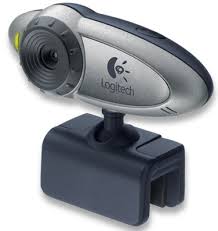
Started with this distribution:
012-08-16-wheezy-raspbian.zip.torrent
Then got the camera connected to the Pi.
sudo apt-get update
sudo apt-get install motion
sudo apt-get install ffmpeg
then edited motion's config file
sudo nano /etc/motion/motion.conf
change these lines to "off" in that file:
control_localhost off
webcam_localhost off
mkdir /tmp/motion
Start up motion program:
sudo motion -n
then looked at http://1.1.1.1:8081 on the PC but the picture is very distorted.
By the way if you stop motion with Ctrl+C instead of Ctrl+X then you don’t have to find and kill the web-server all the time.
Good thing is that it seems to run without powered USB hub. Next camera…
Started with this distribution:
012-08-16-wheezy-raspbian.zip.torrent
Then got the camera connected to the Pi.
sudo apt-get update
sudo apt-get install motion
sudo apt-get install ffmpeg
then edited motion's config file
sudo nano /etc/motion/motion.conf
change these lines to "off" in that file:
control_localhost off
webcam_localhost off
mkdir /tmp/motion
Start up motion program:
sudo motion -n
then looked at http://1.1.1.1:8081 on the PC but the picture is very distorted.
By the way if you stop motion with Ctrl+C instead of Ctrl+X then you don’t have to find and kill the web-server all the time.
Good thing is that it seems to run without powered USB hub. Next camera…
Sunday, September 9, 2012
Insteon LED lights
There seems to be a lot of promises on the web that we in the old world would also see the led lights son from insteon.... Maybe I have a chance to come back to this at some point...
http://www.insteon.net/bulb.html
http://www.automatedhome.co.uk/news/insteon-update-uk-products-in-30-to-90-days.html
http://www.engadget.com/2012/06/21/insteon-says-apps-are-better-than-switches/
http://www.insteon.net/bulb.html
http://www.automatedhome.co.uk/news/insteon-update-uk-products-in-30-to-90-days.html
http://www.engadget.com/2012/06/21/insteon-says-apps-are-better-than-switches/
RFID reader with Z-wave interface
I noticed this RFID reader with Z-wave interface
http://www.2ihome.eu/
http://www.2myhome.info/index.php/products/security/tag-reader
No information available of the actual price. And unfortunately it does not handle NFC. But still I think it would make a good and easy alarm control panel.

http://www.2ihome.eu/
http://www.2myhome.info/index.php/products/security/tag-reader
No information available of the actual price. And unfortunately it does not handle NFC. But still I think it would make a good and easy alarm control panel.
Tuesday, August 21, 2012
Control of the hotel-room
I visted one hotel that had the minxon system to control the room functions. I don't know if it was only a issue with the installation or simply my unit. Since I really tried to like it and the panel quality and the responce time was extremly nice. But the few in my opinion minor software issues were that you could not turn off the aircon with out the room light turned on. I could never get the temperature higher than 22C. Every time I left the room the thermostat temperature was reset to some default. There was a big light around the bed, only way to turn it off was by the master switch (took me pretty long time to realise that). The light in the bathroom could not be turned off from the console and it turned out that was the only light I cold not turn off from the console AND the only light I then had to leave the bed for to switch off ;-)
High "Cool" factor, save's some steps and very tasty look and feel.
http://www.minxon.us/home.htm

High "Cool" factor, save's some steps and very tasty look and feel.
http://www.minxon.us/home.htm
Friday, August 3, 2012
Foscam FI8918W doubles as motion sensor
In the world of Vera Home Automation controller and things to connect to it things is going lightning fast thanks to the all the developers helping out on volunteer basis. The OptiCam FI8918W / Foscam FI8918W camera can now also act as a motion sensor in Vera.
Write down the username and passwords of your cameras. Delete the cameras you already have installed (it's easiest to start from the begging).
If you have problem to delete the cameras use this link:
http://<your ip>:3480/data_request?id=device&action=delete&device=<camera device id>
Unplug the camera from network
Go to Apps, Install Apps, Install the Foscam IP Camera plug in
Plug in the camera, wait few seconds for the camera to be detected, press view, add user name and password if needed, save.
In the camera's Advanced tab enter I_FoscamPTZ.xml in the impl_file field.
Change device_file field and change it to D_DigitalSecurityCamera2.xml.
Then change also the settings so the camera only save video only when sensors are armed.
Save.
In the motion sensor's control panel, in the Advanced tab:
It might be good idea to change the OnTime (the value when the camera should return to untriggered) to e.g. 60= 1 minute
Then there is hint here:
http://forum.micasaverde.com/index.php/topic,11161.msg81428.html#msg81428
The manual for this plug in is here:
http://code.mios.com/trac/mios_foscam-camera
Presets support for camera mode in post 1.5.390 firmwares. Create the presets from the cameras own software.
There was a warning on the micaseverde forum that I paste here:WARNING: Do not change the device file for the camera if your MiOS firmware version is older than 1.5.390!
Write down the username and passwords of your cameras. Delete the cameras you already have installed (it's easiest to start from the begging).
If you have problem to delete the cameras use this link:
http://<your ip>:3480/data_request?id=device&action=delete&device=<camera device id>
Unplug the camera from network
Go to Apps, Install Apps, Install the Foscam IP Camera plug in
Plug in the camera, wait few seconds for the camera to be detected, press view, add user name and password if needed, save.
In the camera's Advanced tab enter I_FoscamPTZ.xml in the impl_file field.
Change device_file field and change it to D_DigitalSecurityCamera2.xml.
Then change also the settings so the camera only save video only when sensors are armed.
Save.
In the motion sensor's control panel, in the Advanced tab:
It might be good idea to change the OnTime (the value when the camera should return to untriggered) to e.g. 60= 1 minute
Then there is hint here:
http://forum.micasaverde.com/index.php/topic,11161.msg81428.html#msg81428
The manual for this plug in is here:
http://code.mios.com/trac/mios_foscam-camera
Presets support for camera mode in post 1.5.390 firmwares. Create the presets from the cameras own software.
There was a warning on the micaseverde forum that I paste here:WARNING: Do not change the device file for the camera if your MiOS firmware version is older than 1.5.390!
Subscribe to:
Comments (Atom)